Volunteering opportunities tool user guide
This user guide will help you create great opportunities, bring new volunteers in smoothly and manage the background processes effectively.
What is the volunteering opportunities tool?
The tool is here for you to advertise what opportunities are available in Scouts locally. Whether you need to boost your Beaver Team, find your next District Chair or bring on board someone to handle your social media, the volunteering opportunities tool can help you.
Take a look at the toolWhy use the tool?
No more external joining forms - the enquirer enters their own details into the membership system so you don't have to
Pre-written templates - you can write your own opportunity advert from scratch or use one of the many templates provided
Everything in one place - direct links to opportunities means you can advertise elsewhere too but still have them come through the tool
Save admin time - by changing the status of an enquiry and leaving comments on it, you can keep on top of who has interacted with your new team member and what stage they're at in their onboarding process
Who can do this? Team Leaders, Lead Volunteers, Chairs, Recruiters, Locally Employed Staff - Leadership Support.
See the digital tool guide to find the step-by-step instructions on how to create your opportunity. Read below to find out how to make it work for you.
Select a template if there's one that fits the opportunity you're advertising and make changes to it to suit your situation and make your opportunity stand out.
If there isn't one for you, then you can create your own from scratch with the 'Template Advert Creator'.
What exactly are you looking for? Write a title that summarises it. Keep it simple, try to avoid role titles, and include teams for people to join or tasks that need to be done.
For example:
| Instead of... | Try... |
| Squirrel Leader | Book reader |
| Cub Leader | Register taker |
| Scout Leader | Scouts Team Member |
| Quartermaster | Kit tracker |
| External Communications Manager | Social media poster |
It's also a good idea to include your Group or District name in the title to help with identification. For example "Cubs Team Member - 5th Anytown"
You don't have to rely on the pre-loaded image. To make your opportunity stand out you can use an image of Scouts in action locally.
Just make sure that:
- It's a good quality image - if it goes fuzzy when you upload it, try a different one
- The image relates to the opportunity - sounds obvious but if you want a Squirrel volunteer, use a picture of some Squirrels!
- You have permission to use it - check out our guidance on taking and using pictures for advertising
When a potential volunteer searches for an opportunity, they'll be shown everything that meets their criteria.
However, they'll only see the key information about the opportunity, so you have to draw them in with a great short description.
Keep this to one or two sentences, make it interesting and doable, and give them enough detail to make them think 'Yes, I could do that' without throwing everything at them.
Use the rule of three - grouping ideas or adjectives into threes is a great way of creating a catchy slogan or short description.
| Instead of... | Try... |
|
We are seeking individuals with strong organisational abilities and a consistent approach to task completion to support the effective operation of our team.
|
Organised, helpful, and love ticking things off a list? Then it's time to join our team! |
|
We need volunteers to assist with the routine delivery of weekly Cubs section activities.
|
If you’ve got a smile on your face, you love getting stuck in, and you're proud to include everyone, then being a Cubs Team Member is perfect for you. |
|
We require volunteers to support the basic management of the Scout Group’s online communication channels.
|
Love scrolling, snapping, and storytelling? Help our Scout Group shine online! |
Read it back out loud - if it takes you a couple of goes to say it and understand it, then give it a tweak as you want everyone to catch it first time!
If you need more ideas for how to make your opportunity sound more in line with how we talk at Scouts, take a look at our brand guidance.
Your title and short description have done the trick, someone has clicked on your opportunity and want to learn more. So, what are they looking for in your long description?
- What's expected of them
- Make a bullet-point list of 4 or 5 specific things they might get up to. If they don't need experience for the role, then keep these things doable for anyone so they don't get put off.
- Avoid generics like 'Running Scouts sessions' but focus on specifics like 'Helping a small group of young people with an activity', 'Taking the register' or 'Running a great team game'.
- What the time commitment is
- Be clear that volunteering is flexible (and make sure it is!)
- Let them know if they can volunteer from home and in their own time, or whether there are in-person elements to it.
- If the tasks have a start and end date, put those in.
- What skills are needed
- If you're looking for a Lead Volunteer or someone for a skilled task, be clear on what kind of skills you'd like them to have.
- If you're just looking for an extra pair of hands on a Wednesday night, remind them they can learn everything, they just need to bring a smile!
- Encouragement that they can do it!
- Tell them they can do it and that they'll be joining a great team who support each other.
End your long description with a call to action; something that tells them what to do next. Great examples are:
- Now you know what it's about, come and join the adventure!
- Ready to help us tell our story? Let's get posting!
- So, if you're the kind of person who likes x, y and z, register your interest now.
If you need more ideas for how to make your opportunity sound more in line with how we talk at Scouts, take a look at our brand guidance.
Next you'll need to set the preferences so your opportunity is only shown to the right people.
Availability and time of day - If your opportunity is for a specific day and time then choose the right ones. If it's something a volunteer can do in their own time, select all of the days and times.
Volunteering preferences - Choose where you need more volunteers. If you're looking for someone in a specific section, choose that one. If you're just looking for helpers across any, then choose all of the relevant ones.
Your interests - What interests would a potential volunteer need to have for your opportunity to be right for them? Select all that are applicable.
Be as specific as you can when selecting your 'Recruiting to' unit.
If you're not sure, in My Membership find the team you want to recruit the volunteer to and see which unit it sits under.
What is a unit?
In the membership system, a "unit" doesn't just mean an "Explorer Unit". It is the term given to any individual body at each level within Scouts. For example, your Cub Section is a unit, your Group is another unit, your District another. So if you're choosing a unit to recruit to, work out if they are going to be volunteering in a specific section, at Group level or at District level or above.
*Remember, those with a 'Non-member needs disclosure' role sit under the Group, not a section.*
Top Tip - Once you've published your opportunity, see it from a potential volunteer's point of view, use the tool and make sure your opportunity pops up!
Who can do this? Everyone!
You've published a great opportunity; it's catchy, interesting and appealing to potential volunteers. Now you need to get the message out that it exists!
You can link directly to your opportunity by using the volunteering opportunities search to find it, click on the three dots and 'Copy link'

Social media is a powerful tool that can help you reach into your community and beyond.
Set up a page that the public can see so you can share info about what Scouts are up to locally and to help advertise opportunities.
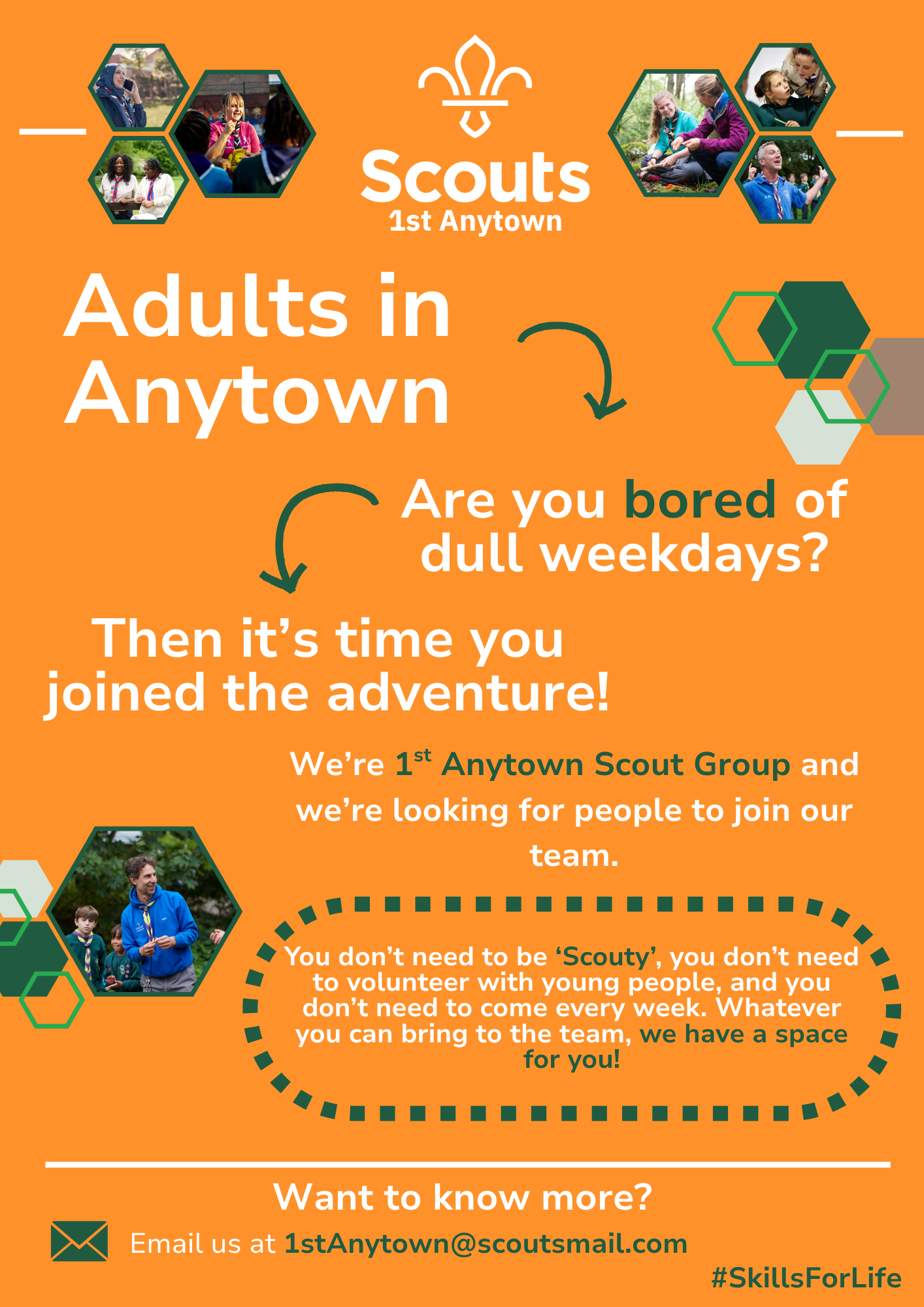
You can use the Brand Centre to create, download and print advertising materials.
Get your materials up anywhere you can - like supermarket community boards, town noticeboards, office lobbies for example.
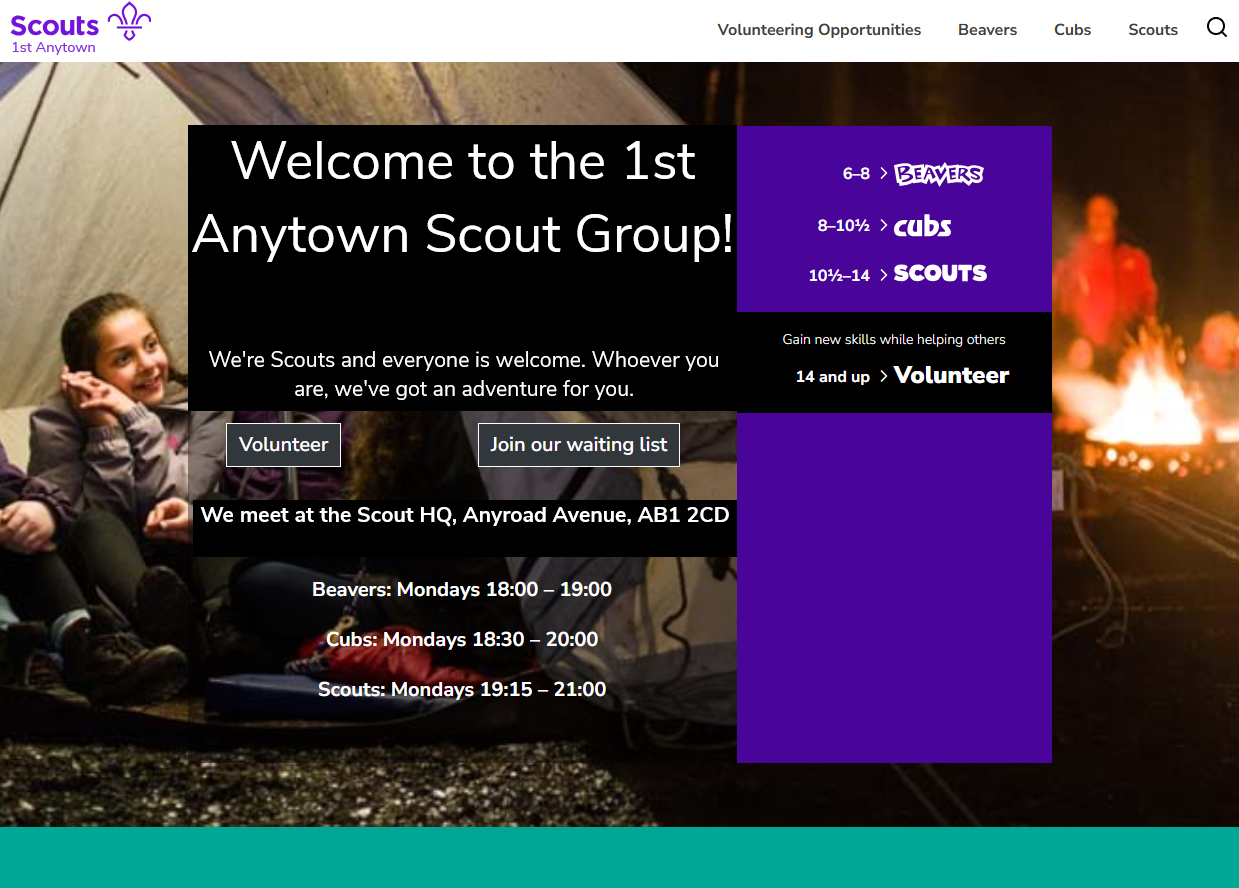
Does your Group, District or County have a website? Great!
Create a page of volunteering opportunities with a title and short description next to the link for each, which will take them through to the volunteering opportunities tool and the ability to register their interest.
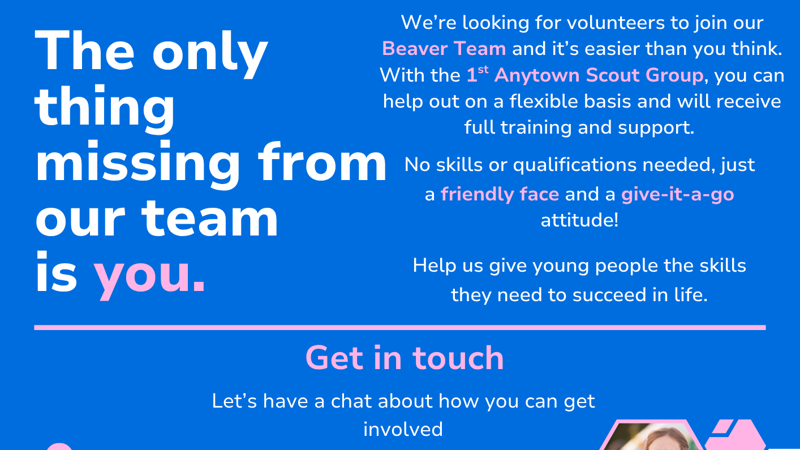
Get your opportunities into local print, like magazines and newspapers.
Make it short and catchy, sell the benefits of volunteering and include a QR code to your website or individual opportunities in the tool.
Top Tip - Direct all volunteer enquiries through the volunteering opportunities tool. That way you have one point of contact for everyone and your volunteer onboarding process can become smoother.
Who can do this? Team Leaders, Lead Volunteers, Chairs, Recruiters, Locally Employed Staff - Leadership Support.
See the digital tool guide to find the step-by-step instructions on dealing with an enquiry or expression of interest. Read below to find some top tips to manage them.
The Recruiter accredited volunteer at that level will receive a notification in the system that someone has made an enquiry to one of the opportunities.
The Lead Volunteer will not be notified but they will be able to see it in the 'volunteer enquiries' tab in My Membership.

If you have lots of enquiries, or if you can see all of those in your District or County, use the search box on the volunteer enquiries page to find what you're looking for.
Bear in mind, you have to be specific about which unit you want to see enquiries for as it doesn't include all those below that level.
If you want to see all the enquiries below a level (e.g. all enquiries in a Group), head to the Data Explorer and use the 'Volunteer enquiries' dashboard.
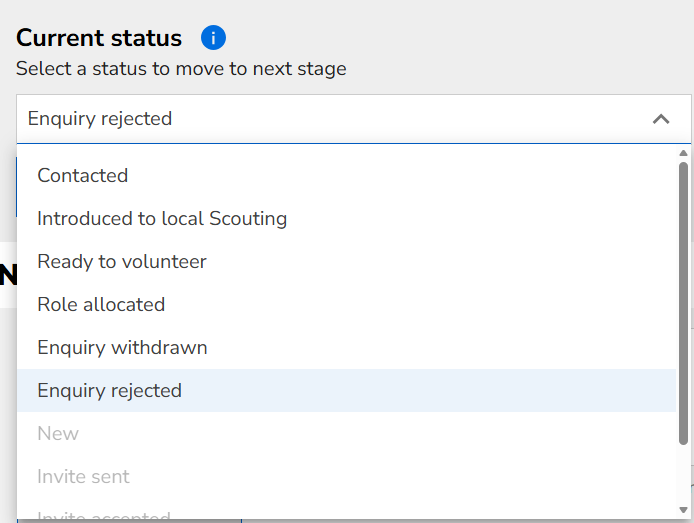
So you know what stage your new volunteer is at, you can choose from a status drop down menu.
To avoid duplication or confusion, as soon as you've been in touch with someone change the status to 'Contacted' and go from there.
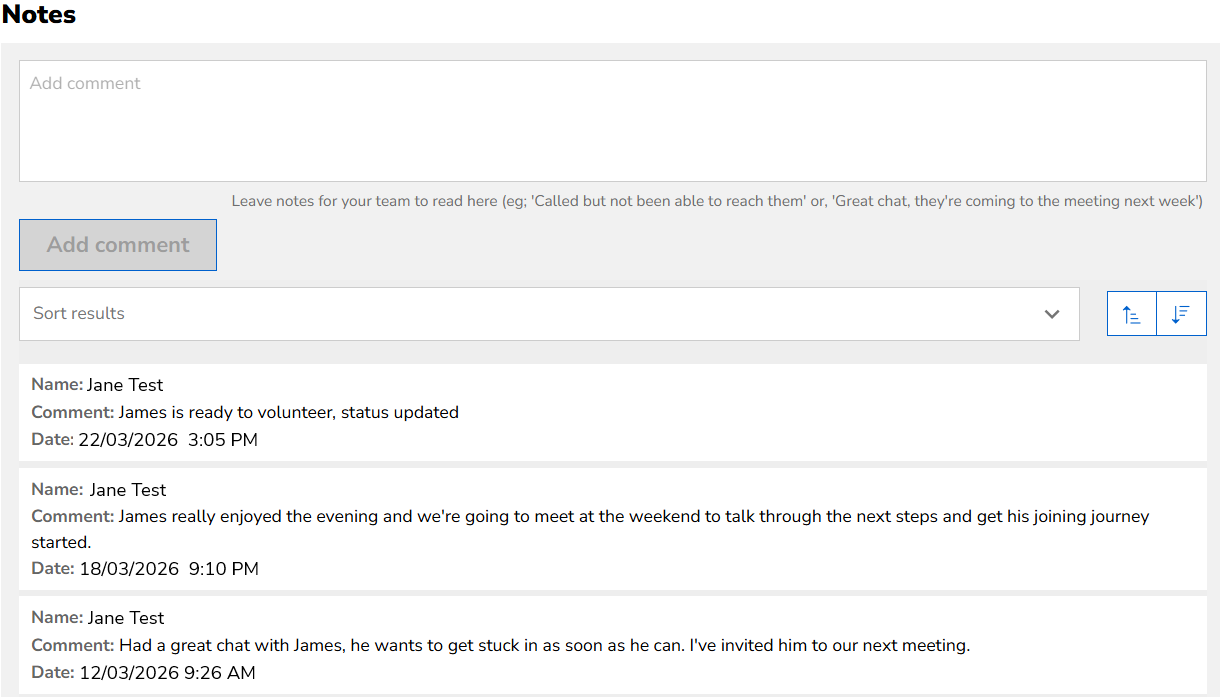
Leave comments on the enquiry to show where you got to. This will publish with your name, the time and date next to it.
Include useful updates like 'Sent Tom an email to offer to meet up for a chat' and 'Had a phone call with Grace, she's agreed to come next week to see what it's like'
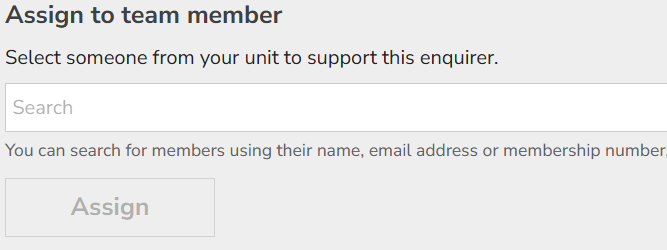
Put someone's name in the box; that could be you or someone else in your team. Whoever it is, make sure they know it's been assigned to them to take the enquiry forward.
This also helps a Lead Volunteer, or someone overseeing enquiries, work out who is looking after this enquiry and if there are any that haven't been assigned to someone.
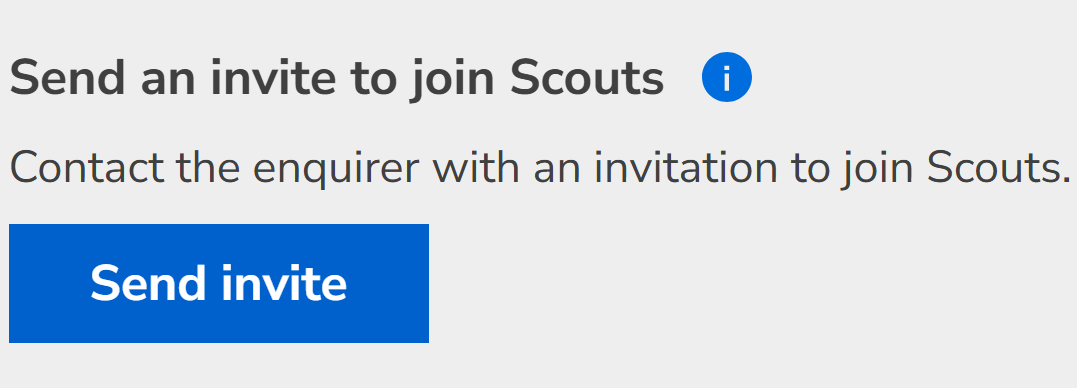
When you've agreed with a volunteer that they're happy to get stuck in, you can change their status to 'Ready to volunteer' and the 'Send invite' button will appear.
Clicking this will give you a preview of the email they'll receive with a link to input their details into the membership system.
It's probably worth popping them a message to let them know to expect this email and follow the link.

Maybe your potential new volunteer has changed their mind and can no longer volunteer, or maybe you've tried making contact several times and have got nowhere, so it's time to reject the enquiry or mark it as withdrawn.
When you change their status and select reject or withdraw, they will receive an email to thank them for their interest and sorry that it didn't work out this time.
You might want to pop them one last message to let them know that you're going to do this first and that they've got your details if they want to get in touch again.
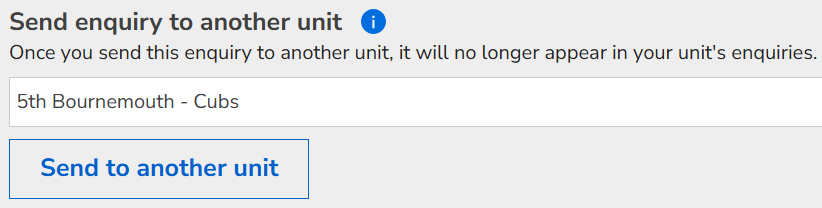
It could be that your enquirer is more suited to a different opportunity somewhere else, or that they accidentally enquired and need to be sent to someone else.
Whatever their reason for going elsewhere, you can choose to send the enquiry to another unit for them to take on. Someone with a Recruiter accreditation for them will receive a notification but it's also worth popping them or the Lead Volunteer a message to let them know you've sent them over.
Top tip - Check out our guidance on talking to new volunteers to help with those initial conversations and bring them on board in the best way possible
Get them stuck in!
Now you have a new volunteer through the door and onto the membership system, it's time to start their joining journey and welcome them into their new team!
We have plenty of resources to help support with that but the key things that will seal the deal are to make sure everyone smiles, includes your new volunteer in everything and listens to what they have to say.
Bring your new volunteer into the team